


Here is a sample of what you will find in lesson 30 of the downloadable Tutorial on Excel macros
Lesson 30 on Excel macros (VBA):
List Boxes in VBA for Excel
Before we begin on the List Box
The difference between a combo box and a list box is that the combo box is a drop-down list and the user can submit a single value from the drop-down list. The list box shows a certain number of values with or without a scroll bar and the user can select one or more values.
|
Combo Box |
List Box |
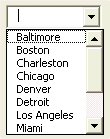
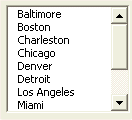
In the toolbox the list box has this icon  .
.
No programming is needed to submit the list of values that will be offered to the user within the combo box. Look for the RowSource property.
The RowSource Property:
The values that should appear in the drop-down list of the combo box are submitted in the RowSource property. For example, if the value of the RowSource property is Balance!A1:A12 The values residing in cell A1 to A12 of the sheet named Balance will be offered as choices to the user who clicks on the small arrow of the combo box.
The rules to submit the RowSource property is the name of the sheet where the list resides followed by an exclamation point (!), the address of the first cell, a colon and the address of the last cell.
IMPORTANT NOTE: if there is a space or a special character within the name of the sheet where the list resides you must surround it with simple quotes. For example: 'New Balance'!A1:A12.
We hope you have enjoyed this introduction to lesson 30
for more on this topic and a complete course on Excel macros download the
Tutorial on Excel Macros
Next Lesson: Option Buttons, Check Boxes and Frames